관련 포스팅
기존에는 터미널 에뮬레이터로 `Alacritty`를 사용하고 있었는데 `WezTerm`과 `Ghostty`가 궁금하여 설치해보려고 한다.
WezTerm
Lua 기반의 터미널 에뮬레이터
Linux - Wez's Terminal Emulator
Wez's Terminal Emulator
wezterm.org
curl -fsSL https://apt.fury.io/wez/gpg.key | sudo gpg --yes --dearmor -o /etc/apt/keyrings/wezterm-fury.gpg
echo 'deb [signed-by=/etc/apt/keyrings/wezterm-fury.gpg] https://apt.fury.io/wez/ * *' | sudo tee /etc/apt/sources.list.d/wezterm.list

sudo apt update

sudo apt install wezterm
# or
sudo apt install wezterm-nightly
GPU 환경 확인
wezterm을 띄우고 `CTRL + SHIFT + L`를 누른다.
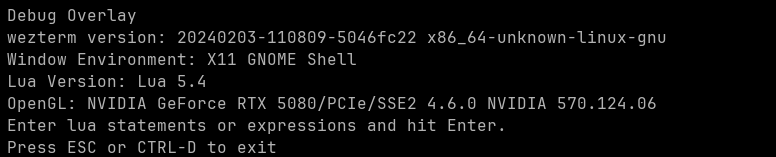
GPU Device 정보 출력
wezterm.gui.enumerate_gpus()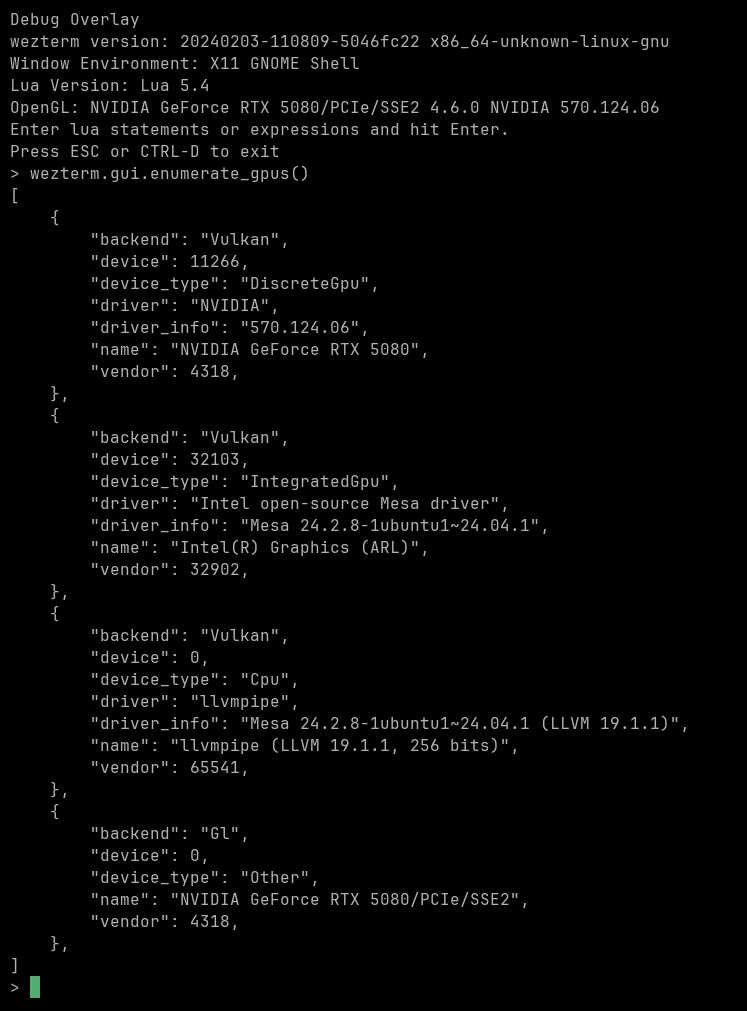
설정 파일
wezterm 설정을 위해 `~/.wezterm.lua`을 만들어 주어야 한다.
vi ~/.wezterm.lua
local wezterm = require 'wezterm'
local config = wezterm.config_builder()

-- GPU device id 설정
local gpus = wezterm.gui.enumerate_gpus()
config.webgpu_preferred_adapter  = gpus[0]

-- 외장 GPU 사용하는 경우
config.webgpu_power_preference = "HighPerformance"

-- 렌더링 옵션
-- GPU 환경 확인 후 Software, OpenGL, WebGpu 중에서 선택
-- Software는 CPU
config.front_end = "OpenGL"
config.animation_fps = 60

config.window_decorations = "RESIZE"
-- config.window_background_opacity = 0.3

config.enable_tab_bar = false
config.warn_about_missing_glyphs = false
config.window_close_confirmation = "NeverPrompt"

config.window_padding = {
  left   = '10px',
  right  = '10px',
  top    = '0px',
  bottom = '50px',
}

-- config.enable_scroll_bar = true,
-- config.scrollback_lines = 30000,
config.enable_kitty_graphics = true


-- Custom Theme
local custom_catppuccin      = wezterm.color.get_builtin_schemes()["Catppuccin Macchiato"]
custom_catppuccin.background = '#293643'
config.color_schemes         = { ['Custom_Catpuccin'] = custom_catppuccin }
config.color_scheme          = 'Custom_Catpuccin'


-- Font
config.font = wezterm.font_with_fallback {
  { family='JetBrainsMono Nerd Font', weight='Light', scale=1.0, },
  { family='D2CodingLigature Nerd Font', weight='Light', },
}
config.font_size = 15
config.cell_width = 0.9
config.line_height = 1.05


-- Muxtiplexing keymaps
local act = wezterm.action


config.leader = { mods = "CTRL", key = "b", timeout_milliseconds = 2000 }
config.keys   = {
  { mode = "LEADER", key = "'",           action = act.SplitVertical    { domain = "CurrentPaneDomain" } },
  { mode = "LEADER", key = ";",           action = act.SplitHorizontal  { domain = "CurrentPaneDomain" } },
  { mods = "LEADER", key  = "x",          action = act.CloseCurrentPane { confirm = false              } },

  { mods = "LEADER", key  = "LeftArrow",  action = act.ActivatePaneDirection "Left"  },
  { mods = "LEADER", key  = "RightArrow", action = act.ActivatePaneDirection "Right" },
  { mods = "LEADER", key  = "UpArrow",    action = act.ActivatePaneDirection "Up"    },
  { mods = "LEADER", key  = "DownArrow",  action = act.ActivatePaneDirection "Down"  },

  { mods = 'LEADER', key  = 'a',          action = act.ActivateKeyTable { name = 'activate_pane', one_shot = false } },
  { mods = 'LEADER', key  = 'r',          action = act.ActivateKeyTable { name = 'resize_pane'  , one_shot = false } },
  { mods = 'LEADER', key  = 'c',          action = act.ActivateKeyTable { name = 'rotate_pane'  , one_shot = false } },

  { mods = 'LEADER', key = ']',           action = act.RotatePanes "Clockwise"        },
  { mods = 'LEADER', key = '[',           action = act.RotatePanes "CounterClockwise" },

  { mods = 'LEADER', key = 'p',           action = act{PaneSelect={alphabet="0123456789"}}},
}

config.key_tables = {
  activate_pane = {
    { key = 'LeftArrow',  action = act.ActivatePaneDirection 'Left'  },
    { key = 'RightArrow', action = act.ActivatePaneDirection 'Right' },
    { key = 'UpArrow',    action = act.ActivatePaneDirection 'Up'    },
    { key = 'DownArrow',  action = act.ActivatePaneDirection 'Down'  },
    -- Cancel the mode by pressing escape
    { key = 'Escape',     action = 'PopKeyTable' },
  },
  resize_pane = {
    { key = 'LeftArrow',  action = act.AdjustPaneSize { 'Left',  1 } },
    { key = 'RightArrow', action = act.AdjustPaneSize { 'Right', 1 } },
    { key = 'UpArrow',    action = act.AdjustPaneSize { 'Up',    1 } },
    { key = 'DownArrow',  action = act.AdjustPaneSize { 'Down',  1 } },
    { key = 'Escape',     action = 'PopKeyTable' },
  },
  rotate_pane = {
    { key = 'RightArrow', action = act.RotatePanes "CounterClockwise" },
    { key = 'LeftArrow',  action = act.RotatePanes "Clockwise"        },
    { key = 'Escape',     action = 'PopKeyTable' },
  },
}

return config;
참고
wezterm 의 multiplexing 기능을 사용해 보자.
이번 포스트에서는 wezterm 터미널 에뮬레이터의 mutiplexing 기능을 설정하는 법을 알아보도록 하겠습니다. wezterm 은 10년 이상 Facebook에서 수석 소프트웨어 엔지니어로 일했으며, KumoMTA의 공동 설립
elsainmac.tistory.com
'Setting > Ubuntu' 카테고리의 다른 글
| Windows에서 VMWare로 Ubuntu 22.04 설치하기 (0) | 2025.03.12 |
|---|---|
| 터미널 에뮬레이터 Ghostty 설치 (0) | 2025.03.11 |
| 터미널 에뮬레이터 비교 (Ghostty, WezTerm, Kitty, Alacritty, Foot, Warp) (2) | 2025.03.05 |
| 멀티 부팅 환경에서 시간 동기화 문제 해결 (0) | 2025.03.05 |
| ZSH 프롬프트 가상환경 보이게 설정 (0) | 2025.03.05 |